Novel planning and outlining software
Plan a novel from the first idea to the last scene. Outline every part, chapter and scene, rearrange them on a corkboard, and keep the story's timeline and maps beside the words.
AuthorOS Write
Write your story, one scene at a time. Your manuscript is more than a long document. It’s chapters, scenes, decisions and details that need to stay connected as the story grows.
Manuscript Studio gives you a dedicated place to write and organise your work. Draft scene by scene, keep your guide and research close, review earlier versions and prepare a PDF when you’re ready to share or print.
Move between your chapter structure, writing view and scene guide. Work on one scene at a time, with point of view and tense controls, formatting tools and word counts close to your draft.
Use Focus or Typewriter mode to settle into the page. Open Find to search your manuscript or replace text. Switch to Split View when you want two writing areas side by side.
Select a word or phrase in your manuscript to open a contextual menu. Add it as a character, location, another story entry or a nickname. You can also send it to Research for later, research it now or leave yourself a note.
Capture useful details and questions as they emerge, then return to the scene without losing your place.
Use the Scene Guide to record a scene’s point of view, location, goal, conflict, outcome, timing and notes. Set a session word goal, add quick notes and review continuity details such as point of view and timeline alignment.
Open the Research panel to access entries created in Research Studio. Use the Codex to find a name or term in the current scene, browse the glossary or search across everything.
Manuscript Studio records autosaved revisions. Review the version history and restore an earlier version when you need to return to a previous draft.
Import a Word document, plain-text file or Markdown file. AuthorOS can find chapters from document headings, or use the words on the page when headings aren’t available.
Export your manuscript as a PDF using a Standard Manuscript, Beta Reader PDF or Print Draft preset. Add an author name and choose whether to include the authorship fingerprint.
The authorship record shows how the manuscript’s words are attributed across writing, pasted text, imported files and text that could not be recorded. You can save or copy the statement alongside the fingerprint. It documents the manuscript’s recorded writing and import history. It is not independent proof of legal ownership.
Track words and writing activity, keep research and notes nearby, and return to your draft with the scene’s purpose in view.
Write the scene. Keep the story connected.
Plan a novel from the first idea to the last scene. Outline every part, chapter and scene, rearrange them on a corkboard, and keep the story's timeline and maps beside the words.
Build the places, peoples and rules of your story in one story bible. Every location, faction, item and piece of lore is a record you can link to the scenes where it matters.
Give every character a full record: roles, templates, your own fields, and the scenes they appear in. Keep the details consistent from the first chapter to the last.
Catch the spark. See where it leads. Sketch It gives you room to catch the beginnings of a story and explore them, then arrange chapters and scenes and map the connections across your story, all within the project you are building.
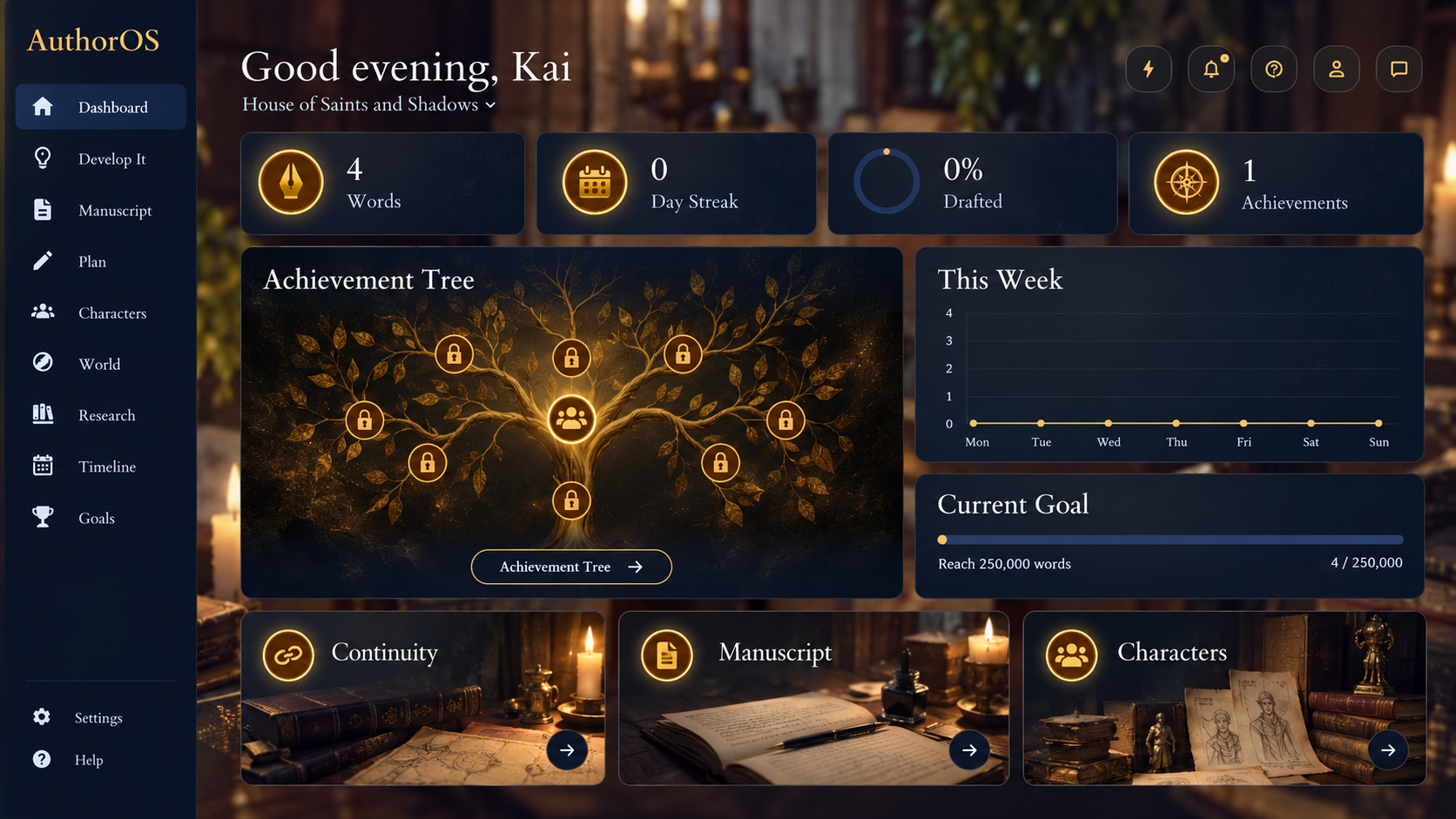
See your progress. Find your next step. Your story has many moving parts. The AuthorOS Dashboard brings your writing activity, current goals and project milestones into one clear view, so you can see how things are progressing and pick up where you left off.
Give every idea somewhere to belong. A story grows through its characters, places, plotlines, timelines and themes. Develop It brings those parts into one project workspace, so you can build them out and see how they fit together.